Welcome to the public DNS service provided by The Floating Lab. This service is designed to enhance your internet privacy, security, and access to the open web by utilizing modern encryption protocols: DNS over HTTPS (DoH) and DNS over TLS (DoT).

This service started as my own private project to bypass censorship while sailing in Asian waters, but because of its great success I decided to make this service public.
🛡️ Why use this free DNS service?
Website domains (URL's) need to be translated into IP-numbers before they can be used. A DNS provider receives your query, looks up the associated IP-nummer, and returns it to you.
Traditional DNS queries are sent in plaintext, meaning anyone on your network (ISPs, public Wi-Fi operators, or governments) can see which websites you are visiting, and possibly interfere (block/redirect) with it, or target advertisements based on your queries. By using my free DNS service, you gain three core benefits:
- Privacy: Your DNS queries are encrypted. Your ISP or network provider can no longer easily track your browsing habits via DNS snooping.
- Security: Encryption prevents DNS Spoofing and Man-in-the-Middle (MitM) attacks, where an attacker intercepts your request and redirects you to a fraudulent website.
- Censorship circumvention: In many parts of the world, governments and ISPs use "DNS Filtering" to block access to certain websites or services. Because my service encrypts these requests, it is significantly harder for network administrators to detect and block your specific DNS queries, helping you maintain access to the global internet even in restrictive environments.

Yes, but...
Isn't blocking harmful sites actually a good thing?
The problem is, what is considered "harmfull"? This is a very slippery slope. The Indonesian government started to block online gambling sites, progressed to porn sites, then DuckDuckGo, Reddit (someone on that forum apparently wrote something they didn't like), some Wikipedia functionality, etc. Without any bad intent I stumbled too many time on that "this website is blocked" page.
I already use another privacy DNS
Well, there are multiple so called privacy DNS providers, but although they use encryption, they are often not as secure as you think. Many of them try to have a low latency, which means that they have servers all over the world and select the nearest one to you. Problem is that their server is then in the same censorship territory as you, and they have to comply with the local rules. Furthermore, many of them finance their servers by selling your "anonimized" data, but these data might still contain enough information to track you. You can check where your DNS queries end up with this free website: dnsleaktest.com.
What is the difference with a VPN?
A VPN encrypts all your traffic and releases it at an IP in (usually) another country. While this can be great, it slows down your connection and not all websites accept a visit via a VPN.
A secure DNS only redirects your DNS traffic. It doesn't slow your connection and the websites you visit just see your normal unaltered IP address.
I already use a VPN, do I need a privacy DNS?
Unfortunately, using a VPN does not automatically mean that your DNS traffic also travels via the VPN, or that after having passed the VPN it arrives at a secure DNS provider. You can check where your DNS queries are handled with this free website: dnsleaktest.com.
Also, it might be a good idea to have an extra layer of protection, independent of the VPN.
does it make my connection slower?
It might be that this DNS service is a few milliseconds slower than the DNS services of the big boys. The good news though is that normally the DNS service is only called once when you open a website on the internet. Once the connection is established the DNS no longer plays any role. An initial latency of a few milliseconds is hardly noticeable, if at all.
🌍 Infrastructure & Privacy Commitments
I believe that privacy is a fundamental human right. My infrastructure is built around these core values:
- 📍 Securely hosted in Iceland: The DNS server is located in Iceland, a jurisdiction known for having some of the world's strongest data privacy laws and protections.
- 🚫 Zero-Logging Policy: I strictly follow a "No Logs" policy. I do not log your IP address, I do not log your DNS queries, and I do not store any metadata that could identify your browsing habits.
- 🌿 Green Energy: In alignment with my commitment to the oceans I sail, my hosting provider utilizes 100% renewable green energy.
Lots of effort goes into the free information pages and services of this website. If you want to show your appreciation and support my efforts, you are welcome to contribute with a donation to my personal Paypal account.
⚙️ Configuration
⚖️ DoH vs. DoT: Which should you use?
| Feature | DNS over TLS (DoT) | DNS over HTTPS (DoH) |
|---|---|---|
| Standard Port | 853 | 443 (Same as standard web traffic) |
| Visibility | Easily identifiable as "DNS Traffic" by firewalls | Hidden within regular HTTPS/Web traffic; nearly indistinguishable from browsing |
| Blocking Difficulty | Moderate: A strict firewall can block port 853 to stop DoT | Extremely High: Blocking DoH requires blocking almost all web traffic (HTTPS) |
| Best Use Case | Native mobile support (Android) and dedicated network hardware | Browsers, bypassing strict censorship, and highly restricted networks (hotels/offices) |
In many countries that suffer from censorship, port 853 is nationwide blocked. This includes Indonesia. This means that you can not use DNS over TLS (DoT) in those countries.
If port 853 is blocked you have two options:
- Use DNS over HTTP (DoH).
- Use a VPN to route port 853 out of the country.
⚖️ System wide vs. Browser only: Which should you use?
System wide is the most secure, it means that all DNS traffic, including for system updates, email servers, etc. uses the secure DNS. Browser only means that you configure the DNS in the browser, and only for the websites you visit the secure DNS is used.
On the other hand, configuration of the browser only is often easier than a system wide configuration.
⚙️ Connection Details
| Protocol | Endpoint / Hostname |
|---|---|
| DNS over TLS (DoT) | dns.thefloatinglab.world |
| DNS over HTTPS (DoH) | https://dns.thefloatingplan.world/dns-query |
The IP address of our DNS service is for DoT and DoH the same: 89.147.111.181
🚀 Setup Guides
If you only want to secure your browser traffic:
Google Chrome / Microsoft Edge / Brave
- Go to Settings.
- Navigate to Privacy and security > Security.
- Scroll down to Use secure DNS.
- Select With: Custom.
- Enter: https://dns.thefloatinglab.world/dns-query
Mozilla Firefox
- Go to Settings.
- Search for "DNS" in the search bar.
- Click Settings next to Network Settings.
- Scroll down and check Enable DNS over HTTPS.
- Set "Use Provider" to Custom.
- Enter: https://dns.thefloatinglab.world/dns-query
If you use system wide secure DNS, you don't have to configure anything in the browsers
📱 Android / GrapheneOS (System-wide DoT)
Android and derivates provide native support for DNS over TLS (Private DNS).
- Open Settings.
- Go to Network & Internet (or Connections).
- Tap on Private DNS.
- Select Private DNS provider hostname.
- Enter: dns.thefloatinglab.world
- Hit Save.
Android currently does not provide an easy way to use DNS over HTTPS (DoH). If you can not use DNS over TLS because port 853 is blocked, you either have to use a VPN or you configure the browser(s) to use DNS over HTTPS (DoH).
🍎 iOS / iPadOS
iOS does not have a simple text field for DoT/DoH. You must use a Configuration Profile.
- Option A: Use an app like DNSCloak or DNSecure.
- Option B: Create a .mobileconfig profile and install it via Safari.
💻 Windows 11 (System-wide DoH)
Windows 11 supports DoH natively via the Settings app.
- Open Settings > Network & internet > Ethernet/Wi-Fi.
- Click DNS server assignment -> Edit.
- Change to Manual and toggle IPv4 ON.
- Enter the IP: 89.127.111.181
- Set DNS over HTTPS to On (automatic template).
🐧 Linux (System-wide DoT)
For modern Linux distributions using systemd-resolved (Ubuntu/Debian/Mint):
- Edit the configuration file: sudo nano /etc/systemd/resolved.conf
- Unhide and edit the following lines:
DNS=89.147.111.181
Domains=thefloatinglab.world
DNSOverTLS=yes
- Restart the service: sudo systemctl restart systemd-resolved
🐧 Linux (System-wide DoH)
The most robust way to enable system-wide DoH on Linux is using dnscrypt-proxy. This acts as a local "translator" that takes standard DNS requests from your system and wraps them in HTTPS.
Install dnscrypt-proxy:
- Ubuntu/Debian/Mint: sudo apt install dnscrypt-proxy
- Arch: sudo pacman -S dnscrypt-proxy
Configure the proxy:
- Edit /etc/dnscrypt-proxy/dnscrypt-proxy.toml.
- Find the plugin_servers section and point it to our service via the HTTPS plugin:
[plugin]
  plugin = 'https'
  url = 'https://dns.thefloatinglab.world/dns-query'
Set your system DNS:
- Update your /etc/resolv.conf (or use NetworkManager settings) to point to 127.0.0.1.
- Restart the service: sudo systemctl restart dnscrypt-proxy
Testing the DNS
After you have configured your system to use dns.thefloatinglab.world, you won't notice any difference (except when you are in a country with censorship; in this case the formerly blocked websites are now fully accessible).
To find out whether your system is correctly configured to use our DNS:
Use my test page
This test works for both system wide and browser-only configurations. Click on the link below to go to my test page:
Browsers can sometimes be a bit stubborn and refuse to reload the page after a system wide DNS change has occured. You sometimes have to wait a couple of minutes for the change to be detected.
If you configured my DNS system wide, check that the browser is not already configured to use its own (secure) DNS.
Run a test on the command line (terminal / command prompt / powershell)
This test is only valid for system wide DNS configuration.
| Operating System | Platform | Command to Copy/Paste |
|---|---|---|
| Windows | Command Prompt / PowerShell | nslookup test.verify.thefloatinglab.world |
| macOS | Terminal | dig test.verify.thefloatinglab.world +short |
| Linux | Terminal | dig test.verify.thefloatinglab.world +short (or use nslookup if dig is missing) |
If the test results in the IP address 89.147.111.181 then you are using my DNS.
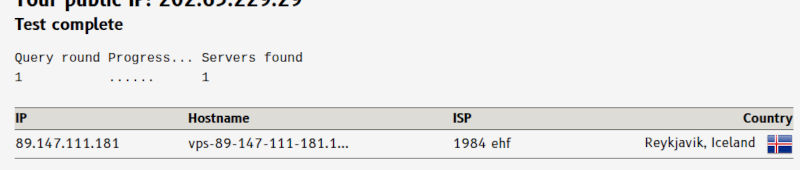
DNS leak test
Use the third party tool dnsleaktest.com to find out where your DNS requests go. Even if you use one of the so called "privacy DNS's", you will see that it often ends up in a country where they have to abide to the local censorship rules.
This free DNS service is provided "as is" without any warranties. Use of this service constitutes acceptance of its use at your own risk.
